Click To Pay
Merchant guide
This page introduces Click to Pay and explains how cardholders can create a new profile, add a card, or use a card already registered with the service on the Nexi payment page.
What is Click to Pay?
Click to Pay is an online payment service designed to simplify card checkout. It allows cardholders to associate their cards with a profile identified by an email address and/or mobile phone number, so that the cards can be reused at merchants that support the service, including across different websites.
How it works for the cardholder
During payment, the cardholder may be recognized through a previously used device or identified using their email address. If the device is not recognized, verification using a one-time password (OTP) may be required. If the cardholder is not yet registered, they can enter their card details and choose to enroll in Click to Pay during checkout.
Benefits for merchants
Click to Pay streamlines card payments: registered cardholders can avoid re-entering all their card details; the experience is available at multiple participating merchants; and recognition of remembered devices may reduce the number of checkout steps. The aim is to reduce friction during purchase and encourage payment completion, without guaranteeing any specific increase in conversion rates.
Supported payment services and features
Click to Pay is supported by the following XPay payment services:
-
Hosted Payment Page
-
Pay by Link
-
E-commerce Plugins
-
Build
-
Mobile SDK (WebView)
Compatibility with Additional Features
-
Dynamic Currency Conversion (DCC)
-
Alpha Bank Loyalty Program
-
Recurring Transactions (CIT & MIT)
Click to Pay cannot be combined with:
- Acquirer Agreements
Integration into the Nexi payment journey
In the illustrated experience, the cardholder opens a Nexi payment page, selects card payment, enters their email address and card details, and sees the "Register your card to Click To Pay!" option. The cardholder can then provide a phone number, accept the terms of enrollment and, separately, choose to remember the device. The screens and steps available depend on the checkout configuration and the cardholder's circumstances.
Scope of this guide
The following chapters illustrate two Nexi checkout scenarios: creating a new profile with a new card and using a card that is already registered with Click to Pay. The screenshots provide examples of the cardholder journey to help merchants understand the payment experience.
Cardholder journey: new profile and new card
Before starting
-
The cardholder places an order on the merchant's e-commerce website or receives a Pay-by-Link from the merchant. They have their payment card and CVV security code available.
-
The cardholder has an email address and mobile phone number.
Open the payment page
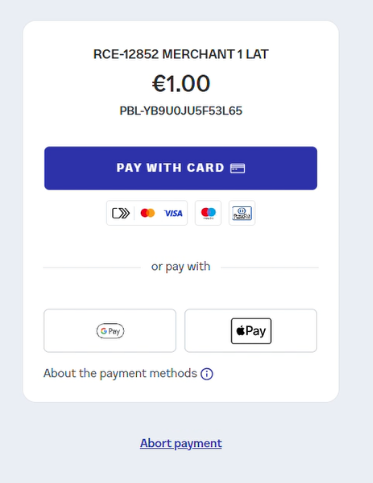
The cardholder starts checkout on the merchant's website or opens a payment link, is redirected to Nexi XPay, checks the merchant name and amount, and selects PAY WITH CARD.
Enter the email address
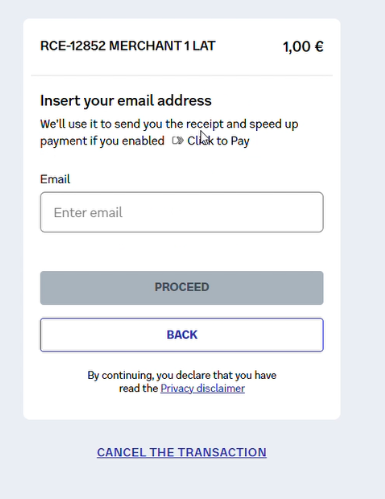
When prompted, the cardholder enters their email address in the "Email" field and selects "PROCEED". The cardholder checks that the address is correct: the page indicates that it may be used to send the receipt and facilitate future Click to Pay payments.
Note: If the merchant supplies the cardholder's email address in the corresponding integration variable, the email screen is skipped and the cardholder proceeds to the next page.
Enter the cardholder and card details
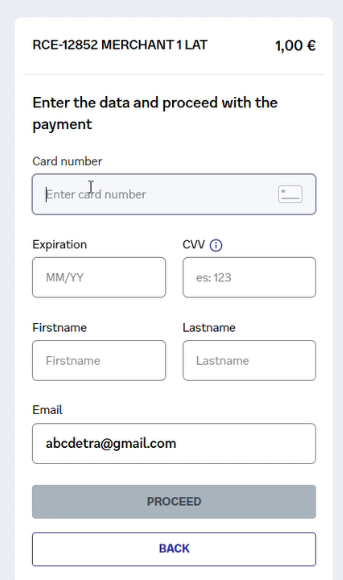
The cardholder enters the card number ("Card number"), expiration date ("Expiration"), and security code ("CVV"). They then enter their first name ("Firstname") and last name ("Lastname"), checking the displayed email address and all entered details for accuracy.
Choose whether to register the card with Click to Pay
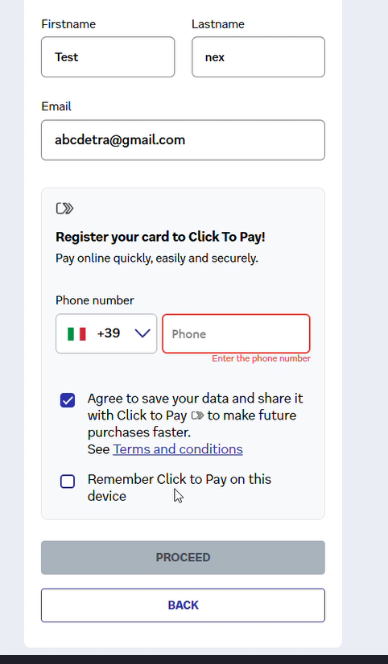
In the "Register your card to Click To Pay!" section, the cardholder can choose to enroll in the service. They enter their phone number ("Phone number") and check the international dialing code. After reviewing the terms and conditions, they select the enrollment checkbox if they wish to save and share their data with Click to Pay for future purchases.
The "Remember Click to Pay on this device" checkbox allows the cardholder to request device recognition for subsequent payments. This choice is separate from enrollment in the service.
Check the payment outcome
The final step of the journey depends on how the payment is initiated. In the Pay by Link scenario, where the merchant sends the payment link directly to the cardholder, the journey ends on the payment result page. When the payment is confirmed, the result page displays a transaction summary, the card used (with a masked card number) and the "DOWNLOAD RECEIPT" option. In the e-commerce scenario, where the consumer places an order on the merchant's website, the cardholder is instead redirected back to the e-shop at the end of the journey, where they are informed of the transaction outcome.
Cardholder journey: using an already registered card
This chapter describes the payment journey for a cardholder who already has a card registered with Click to Pay. The example shows a scenario where verification with a one-time password (OTP) is required before accessing saved cards. The actual journey may vary depending on whether the device is recognized.
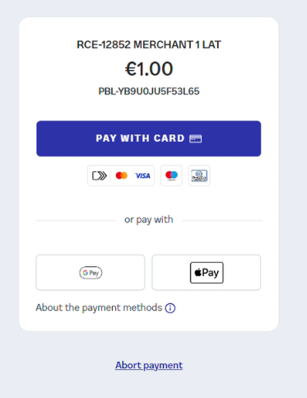
Open the payment page
The cardholder starts checkout on the merchant's website or opens a payment link, is redirected to Nexi XPay, checks the merchant name and amount, and selects PAY WITH CARD.
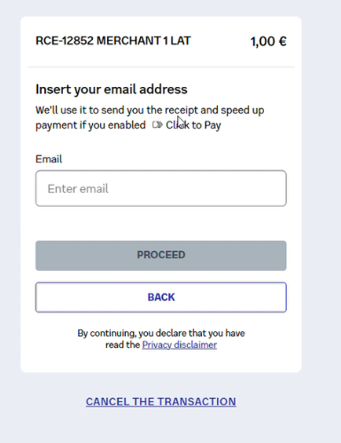
Enter the email address
On the next screen, the cardholder enters the email address associated with their Click to Pay profile and selects "PROCEED".
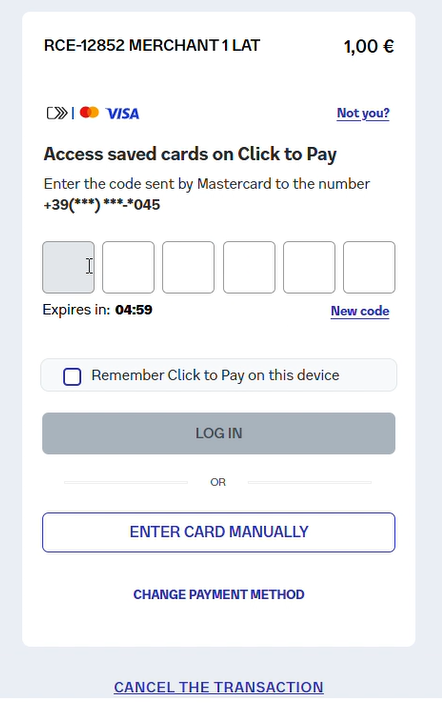
Verify identity using an OTP
If the device is not recognized, the cardholder is asked to enter a verification code sent by the card scheme to the partially masked phone number. The cardholder enters the code in the six fields and selects "LOG IN". They can request a "New code", choose "ENTER CARD MANUALLY", or change the payment method. The "Remember Click to Pay on this device" option allows the cardholder to request device recognition for future transactions.
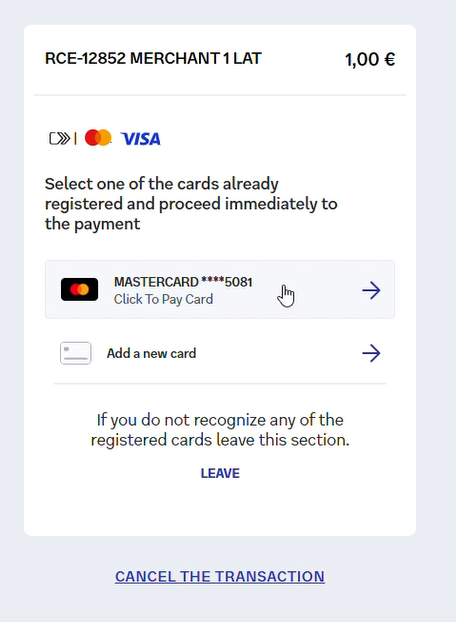
Select an already registered card
After verification, Click to Pay displays the cards associated with the profile. The cardholder identifies the desired card by its payment network and last digits, then selects it to continue. They can also select "Add a new card" to use another card, or "LEAVE" if they do not recognize any of the listed cards.
Check the payment outcome
The final step of the journey depends on how the payment is initiated. In the Pay by Link scenario, where the merchant sends the payment link directly to the cardholder, the journey ends on the payment result page. When the payment is confirmed, the result page displays a transaction summary, the card used (with a masked card number) and the "DOWNLOAD RECEIPT" option. In the e-commerce scenario, where the consumer places an order on the merchant's website, the cardholder is instead redirected back to the e-shop at the end of the journey, where they are informed of the transaction outcome.
Note for merchants
For a cardholder who has already registered a card, Click to Pay simplifies payment by avoiding the need to re-enter the card details manually. OTP verification is shown in this scenario but may not be required on previously recognized devices. The final outcome remains the one communicated by the payment page.
Troubleshooting
If "Transaction declined" appears, the payment has been declined. This message alone does not establish whether Click to Pay registration was successful. The cardholder can review the details entered and, if necessary, contact the merchant or card issuer.
Logos
For merchants accepting all listed cards:

White background - Download PNG

For merchants accepting all listed cards except American Express:

White background - Download PNG

Frequently asked questions
Is Click to Pay registration mandatory for the cardholder?
In the illustrated journey, registration is offered as an option during payment.
What is the purpose of device recognition?
The option allows the cardholder to request that the device be remembered for faster recognition during subsequent payments.
How can the cardholder tell whether registration was successful?
The cardholder checks whether the page displays explicit confirmation. Simply completing the fields does not mean registration has been completed.
Note: the screenshots document the steps shown in the supplied materials; they do not confirm a successful transaction or activation.